Posts

Showing posts from 2023

How to Fix External Hard Disk Not Showing on MacBook (Complete Guide)

📌 Introduction Facing an issue where your external hard disk is not showing on your MacBook? You’re not alone. This is a common problem that many macOS users encounter, and in most cases, it can be resolved quickly without any technical expertise. In this guide, we’ll walk you through a simple and effective solution to make your external drive visible again. 🔍 Why This Issue Happens Before jumping into the solution, here are a few common reasons why your external hard disk may not appear: Finder settings are not configured to show external drives Temporary system glitches Improper connection or cable issues Drive not mounted properly 🛠️ Step-by-Step Solution Follow these steps carefully: Step 1: Open Finder Click on the  Finder  icon from your Dock. Step 2: Access Finder Settings From the top menu bar, click on  Finder  (next to the Apple logo), then select  Settings  (or  Preferences  in older macOS versions). Step 3: Enable External Disks Go ...
Hidden Google Tricks to Make Browsing More Fun and Productive

Google offers much more than simple web searches. From entertaining Easter eggs to powerful productivity tools, there are several hidden features that can enhance your browsing experience and help you work more efficiently. In this article, we’ll explore some of the most useful and entertaining Google tricks you should try today. 🎮 Fun Google Easter Eggs & Games Do a Barrel Roll Type  “Do a Barrel Roll”  into Google Search and watch your browser screen perform a complete 360-degree spin. Askew Search for  “Askew”  to see the entire search page tilt slightly to one side for a fun visual effect. Play Retro Games Google allows you to instantly play classic games directly in your browser. Simply search for: Pac-Man Solitaire Snake Tic-Tac-Toe These games are perfect for quick entertainment during breaks. Flip a Coin / Roll a Dice Need help making a decision or playing a board game? Search for: “Flip a Coin” “Roll a Dice” Google will instantly provide interactive too...

How to Shut Down Your Windows PC with a Double Click

Managing your computer efficiently can save time and improve productivity. One simple trick is creating a shortcut that allows you to shut down or restart your Windows PC with just a double click. In this tutorial, you will learn how to create a batch file that can instantly restart your system. Step-by-Step Guide Step 1: Open Notepad First, open Notepad on your Windows computer. You can do this by: Pressing  Windows + R Typing  notepad Pressing  Enter Step 2: Enter the Shutdown Command In Notepad, type the following command: shutdown -r -f -t 1000 What This Command Means -r  → Restarts the computer -f  → Forces running applications to close -t 1000  → Sets a timer before restart (in seconds) If you want to shut down the computer instead of restarting it, you can use: shutdown -s -f -t 0 Step 3: Save the File as a Batch File Now save the file with any name, but make sure the extension is  .bat Example: RestartPC.bat To save correctly: Click  File ...

How to Download Trial Software for Free Using a Simple Search Trick

Hello everyone, I hope you are doing well. In this post, I am going to share a simple search technique that many users use to find trial or promotional versions of software available online. The Search Trick To search for available software keys or activation-related results, type the following keyword before the software name in Google: 94fbr For example: 94fbr Adobe Photoshop This method may help you find forums, discussions, or websites related to software activation and trial versions. Important Note Always download software from trusted and official sources to keep your device secure and avoid malware or legal issues. Supporting original developers by purchasing licensed software is always recommended for long-term use and safety. Conclusion I hope you found this post helpful and informative. If you liked the article, feel free to share it with others and keep visiting for more useful tips and technology updates. Thank you for reading!

How to Protect Files and Folders in Windows Without Third-Party Software

Data privacy and file security are important for every computer user. Fortunately, Windows provides built-in command-line tools that allow users to restrict access to files and folders without installing any additional software. In this tutorial, you will learn how to lock and unlock files or folders in Windows using Command Prompt. Requirements A Windows computer Administrator privileges (recommended) Basic knowledge of Command Prompt commands Step 1: Open Command Prompt Follow these steps to launch Command Prompt: Press  Windows + R  to open the Run dialog box. Type  cmd Press  Enter The Command Prompt window will appear on your screen. Step 2: Navigate to the Target Directory Use the  cd  command to move to the location where your file or folder is stored. Example cd Desktop You can replace  Desktop  with any directory path according to your file location. Step 3: Lock the File or Folder Windows allows you to modify access permissions using the...

Steganography in Windows: Hide Files Inside Images Without Additional Software

Steganography is a technique used to hide confidential data inside another file, such as an image, audio file, or video, without attracting attention. Unlike encryption, which protects the content of a file, steganography conceals the very existence of the data. In this tutorial, you will learn a simple method to hide files inside an image in Windows using built-in Command Prompt features. What Is Steganography? Steganography is the practice of concealing one file inside another file. In Windows, this can be done using the Command Prompt and archive files such as  .RAR  files. For example, you can hide a document, video, or folder inside an image file so that it appears to be a normal picture to other users. Requirements Before starting, make sure you have the following: A Windows computer An image file ( .jpg ) A file or folder you want to hide A compression tool such as  WinRAR  or similar archive software Step 1: Create a RAR Archive First, convert the file or fol...

Simplest Way to Download YouTube Videos for Free

Watching videos online is convenient, but sometimes users prefer downloading videos for offline viewing. In this tutorial, you will learn a simple method to download YouTube videos using a web-based approach without installing additional software. This guide works for both desktop and mobile users. Method 1: Download YouTube Videos on Desktop or Laptop Follow the steps below carefully. Step 1: Copy the Video URL Open the YouTube video that you want to download and copy its URL from the browser’s address bar. Example Video URL https://www.youtube.com/watch?v=B_8xHxBA5NU Step 2: Modify the URL To access the download page, simply add  ss  before  youtube  in the URL. Modified URL https://www.ssyoutube.com/watch?v=B_8xHxBA5NU After modifying the link, press  Enter . You will be redirected to a video download page where different download options and formats will be available. Step 3: Download the Video Choose your preferred video quality and format. Click the  ...

Complete List of Computer Memory Units

Hello everyone, I hope you are doing well. In this article, we will explore computer memory units ranging from the smallest digital unit to extremely large theoretical storage units. Understanding these units is important for anyone interested in computers, data storage, and modern technology. Basic Memory Units 1. Bit A  Bit  is the smallest unit of data in computing. The word  bit  stands for  Binary Digit . A bit can contain only one value: 0 1 2. Nibble A  Nibble  consists of  4 bits . Example: 1010 3. Byte A  Byte  consists of  8 bits  and is commonly used to store one character. Example: 01000001 = A Standard Computer Storage Units Unit Equivalent 1 Nibble 4 Bits 1 Byte 8 Bits 1 Kilobyte (KB) 1024 Bytes 1 Megabyte (MB) 1024 Kilobytes 1 Gigabyte (GB) 1024 Megabytes 1 Terabyte (TB) 1024 Gigabytes 1 Petabyte (PB) 1024 Terabytes 1 Exabyte (EB) 1024 Petabytes 1 Zettabyte (ZB) 1024 Exabytes 1 Yottabyte (YB) 1024 Zettabytes Exte...

Some Facts About ChatGPT

Image
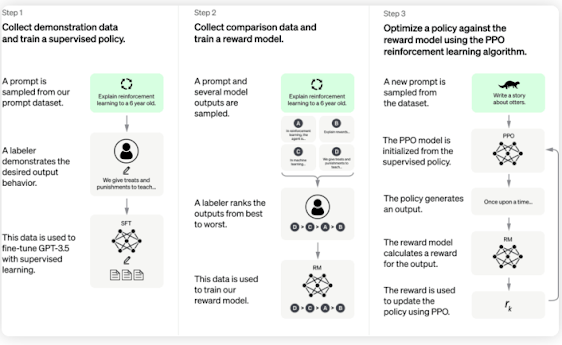
 Hello Folks hi.... Here I am gonna tellyou some fact about some facts about chatgpt. However most of us are fanilier with word chatGPT but stil some of us are nor us are unknown some facts about it. So here we go some facts about it.... (1)----> ChatGPT is a large language model (LLM) of the GPT# series-3 series, which has been trained using supervised fine -tuning and Reinforcement learning from Human Feedback(RLHL). It is largest learning language model in the human in the artificial intelligence(AI) with about 175 billion ML parameters. The training was completed in three phases, which also included supervised & unsupervised techniques . Some more facts about chatGPT The training dataset contains over 570 GB of text , The model was fine tuned using several GBs of database The number of attention heads is around 96 The training model has around 24 layers The training process used 1000NVIDIA V100 GPUs It is trained on Microsoft's Azure AI supercomputing technologies Pleas...

How to Install Turbo C++ on macOS

Many students and beginners still use Turbo C++ for learning basic C and C++ programming concepts. Since Turbo C++ was originally designed for DOS-based systems, it does not run directly on modern macOS versions. However, with the help of  DOSBox , you can easily run Turbo C++ on your Mac. In this tutorial, you will learn step-by-step how to install and run Turbo C++ on macOS. Requirements Before starting, make sure you have: A Mac computer running macOS Internet connection Basic knowledge of terminal commands Step 1: Download DOSBox Turbo C++ requires a DOS environment to run on macOS. For this purpose, we will use  DOSBox . Visit the official DOSBox download page: DOSBox Official Website Download and install the latest version compatible with your Mac. Step 2: Download Turbo C++ Now download the Turbo C++ compiler package. Example download source: Turbo C++ Download File After downloading: Extract the  TC.zip  file. Move the extracted  TC  folder to your ...

Convert Your Web Browser Into a Simple Notepad

Modern web browsers are capable of much more than just browsing websites. With a simple trick, you can instantly turn almost any browser into a lightweight text editor or notepad without installing additional software. In this tutorial, you will learn how to use your browser as a temporary writing space using a simple command. Supported Browsers This trick works on most modern web browsers, including: Google Chrome Opera Safari Mozilla Firefox Microsoft Edge Step 1: Open Your Web Browser Launch any web browser installed on your computer. You can use browsers such as Chrome, Opera, Safari, Firefox, or Edge. Step 2: Enter the Special Command Copy and paste the following code into the browser’s address bar: data:text/html,<html contenteditable> After pasting the code, press  Enter . Step 3: Start Typing A blank editable page will appear inside your browser window. You can now: Write notes Draft quick text Practice coding snippets Create temporary documents The page behaves like ...